

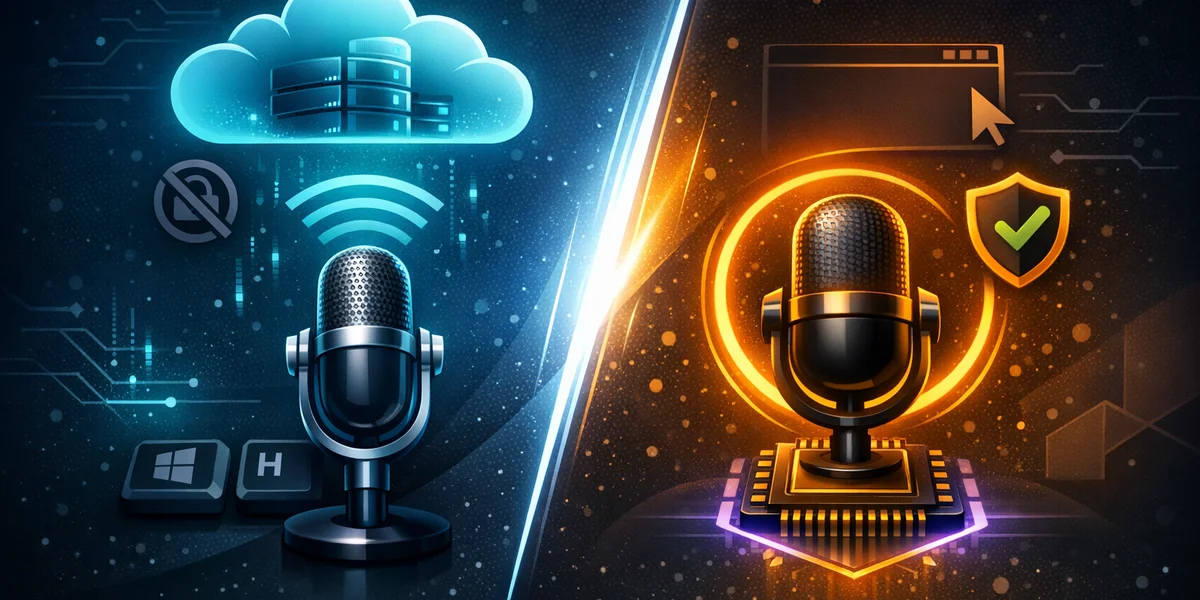
On Windows 11, voice typing (Win+H) converts your speech into text inside any text field using cloud speech recognition, while Voice Access lets you control the entire PC by voice — opening apps, clicking, and dictating — using on-device recognition that works offline. Use voice typing to write; use Voice Access for hands-free control. They are two distinct tools, not the same feature.
Introduction
If you have searched voice typing vs Voice Access, you are not alone — Windows 11 ships two separate voice features with overlapping names, and the Voice Access dictation difference confuses many users. Both can turn speech into text, yet they were built for different jobs. One is a quick writing aid; the other is a complete accessibility system for Windows voice control.
This guide explains what each tool actually does, how they differ on privacy and offline support, when to choose which, and where a dedicated third-party tool fits in. By the end, you will know exactly which built-in option matches your workflow — and when neither is enough.
What is voice typing on Windows 11?
Voice typing is the built-in dictation feature that converts your spoken words into text in any editable field. You activate it with the Win+H keyboard shortcut, and a small toolbar appears so you can dictate into Word, your browser, email, or a chat box.
Crucially, voice typing relies on online speech recognition powered by Microsoft’s Azure Speech services. That means it needs a working microphone and an active internet connection — your audio leaves your device for transcription.
Key characteristics of voice typing:
- Activated with Win+H, works in any text field
- Cloud-based (Azure) — requires internet
- Supports 50+ languages with automatic punctuation
- Designed purely for writing, not for controlling the PC
Voice dictation is the process of converting spoken words into written text using speech recognition. Voice typing is Windows 11’s native implementation of exactly that — nothing more, nothing less.
What is Voice Access, and how is it different from dictation?
Voice Access is a full accessibility feature that lets you operate your entire PC by voice — and that is the core Voice Access vs dictation difference. Where voice typing only writes text, Voice Access can open and switch between apps, click buttons, scroll, navigate the web, and dictate text too.
Voice Access uses modern on-device speech recognition, so it works even without an internet connection once set up. It is available in Windows 11 version 22H2 and later, and it replaced the older Windows Speech Recognition (WSR) in September 2024.
Voice Access was designed first for people with mobility disabilities, but anyone wanting hands-free Windows voice control can use it. Globally, an estimated 1.3 billion people — about 16% of the world’s population — experience significant disability, which is why robust accessibility tooling matters far beyond a single feature.
When Voice Access shines
- You want to control the whole computer without a mouse or keyboard
- You need to work offline for privacy or connectivity reasons
- You rely on number overlays and grid navigation to click items
- You have a mobility impairment or are recovering from injury
Voice typing vs Voice Access vs Weesper: a side-by-side comparison
For pure dictation, the two Windows tools are close in accuracy; the real differences are scope, privacy, and platform support. The table below compares both built-in options against Weesper Neon Flow, a dedicated offline dictation app.
| Feature | Voice Typing (Win+H) | Voice Access | Weesper Neon Flow |
|---|---|---|---|
| Primary purpose | Dictate text | Full PC voice control | Professional dictation |
| Works offline | ❌ Cloud (Azure) | ✅ On-device | ✅ 100% offline |
| Privacy (audio stays local) | ❌ Sent to cloud | ✅ Local | ✅ Never transmitted |
| Controls apps & UI | ❌ | ✅ | ❌ |
| Platforms | Windows only | Windows 11 only | Windows + macOS |
| Languages | 50+ | Growing list | 50+ |
| Custom vocabulary / prompts | ❌ | ❌ | ✅ |
| Price | Free | Free | 5€/month |
The pattern is clear: the built-in tools are free and convenient, but each makes a trade-off. Voice typing sacrifices privacy for cloud accuracy; Voice Access keeps data local but is Windows-only and command-heavy. A dedicated tool can combine offline privacy with dictation-focused accuracy across both operating systems.
When should you use voice typing vs Voice Access?
Choose based on the task, not the name. If you only need to write — emails, documents, notes — use voice typing with Win+H. If you need to operate your PC hands-free or work offline for privacy, use Voice Access.
Quick decision guide:
- I just want to dictate text and I’m online → Voice typing (Win+H)
- I want to control my whole PC by voice → Voice Access
- I need dictation that stays offline and private → Voice Access, or a dedicated offline app
- I work across Windows and Mac, in multiple languages, with specialist terms → a third-party tool like Weesper
For a deeper walkthrough of enabling either feature, see our complete Windows 11 voice dictation setup guide, and our breakdown of the Windows 11 dictation toolbar and its commands.
Where the built-in tools fall short for professionals
Both Windows tools cover everyday needs, but professionals often hit three walls: privacy, accuracy on specialist terms, and cross-platform consistency. Voice typing sends audio to the cloud, which is a non-starter for lawyers, doctors, and consultants handling confidential material.
Prolonged typing is also a genuine health concern — research on keyboard workers documents reduced typing endurance and upper-limb strain, which is partly why voice input adoption keeps rising. But the people who switch for health reasons need a tool that is accurate and reliable every day, not just convenient.
This is where Weesper Neon Flow offers a third path. It runs 100% offline using Whisper-based models, so your voice data never leaves your device — combining the privacy of Voice Access with dictation accuracy and custom prompts for professional vocabulary. It also works on both Windows and macOS, which neither Microsoft tool does.
If privacy is your main reason for going offline, our guide on offline voice dictation and data privacy explains exactly why local processing matters. You can also download Weesper for a free 15-day trial and compare it directly against the built-in tools.
If your Windows 11 machine is actually a Citrix or RDP session into a corporate desktop, neither voice typing nor Voice Access is built for that setup — our DictaFlow review covers a tool designed specifically for dictating inside locked-down virtual desktops.
If you code on Windows and want a cloud-based option with screen-reading context instead of a fully local one, our WhisperTyping review covers its OCR-assisted approach and how it compares to offline dictation.
How to decide quickly
The Windows voice access vs dictation decision comes down to intent. For free, occasional writing with internet access, voice typing is fine. For free, hands-free Windows voice control that works offline, Voice Access is the better built-in choice.
But if you need dictation that is private by design, accurate with specialist terminology, and consistent across Windows and Mac, a dedicated app is worth the small monthly cost. If you are still weighing options, our framework for choosing voice dictation software walks through ten criteria and compares eight tools side by side.
Conclusion
Voice typing and Voice Access are not the same thing: voice typing is cloud-based dictation for writing, while Voice Access is offline, on-device control of your entire PC. For casual use, the built-in tools are a great free starting point. But professionals who need offline privacy, specialist accuracy, and cross-platform support will quickly outgrow them.
Ready to dictate privately on both Windows and Mac? Try Weesper Neon Flow free for 15 days, or browse our Help Center to see how offline dictation fits your workflow.