

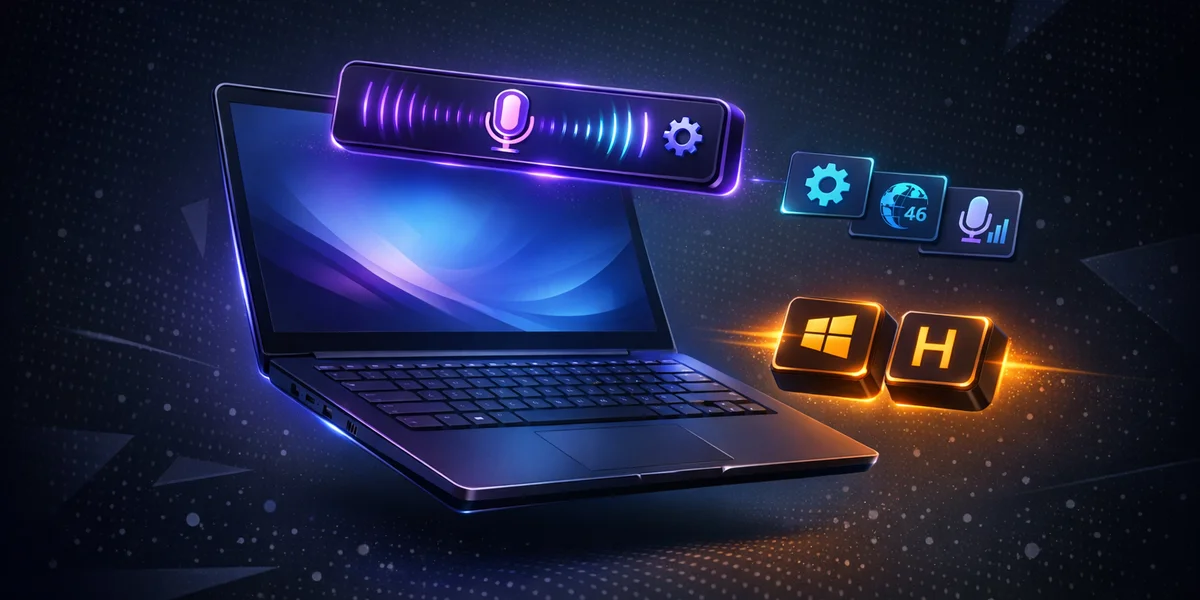
The Windows 11 dictation toolbar is the small floating panel that opens when you press Windows + H in any text field. It converts speech into text using Microsoft’s cloud-based Azure speech models, supports 46 languages, and includes auto-punctuation, voice commands, and (on Copilot+ PCs) a new Fluid Dictation mode. To use it offline, with custom vocabulary, or beyond Microsoft’s language list, you need a third-party alternative such as Weesper Neon Flow.
This complete 2026 guide walks through every feature of the Windows 11 dictation toolbar — how to open it, configure it, use voice commands, install additional languages — and explains exactly where the native tool falls short for professional workflows. Whether you are dictating an email, drafting a Word document, or writing code comments, the Win+H toolbar can save typing time, provided you understand its limits.
How do I open the Windows 11 dictation toolbar?
Press Windows logo key + H in any text field to open the Windows 11 dictation toolbar. The toolbar appears as a small floating panel near the top of the screen, with a microphone icon in the centre and a settings gear on the right. Click the microphone (or wait briefly) to start dictating; click it again or say “stop listening” to pause.
The shortcut works system-wide:
- Microsoft 365 (Word, Outlook, OneNote, Teams)
- Browsers (Edge, Chrome, Firefox) — any input field or contenteditable area
- Notepad, WordPad, and Mail
- Custom applications that accept standard Windows text input
If Windows + H does nothing, the most common causes are a missing speech recognition language pack, an Fn-key conflict on laptop keyboards (HP EliteBook, Dell Latitude, Lenovo ThinkPad), or a vendor shortcut utility intercepting the combination. Install the language pack in Settings > Time & Language > Speech and disable conflicting OEM utilities such as HP Quick Launch or Dell SupportAssist.
What settings does the Windows 11 dictation toolbar offer?
The Windows 11 dictation toolbar exposes five settings behind the gear icon. Click the gear on the right of the toolbar to reveal them.
| Setting | What it does | Default |
|---|---|---|
| Auto punctuation | Inserts full stops, commas, and question marks from speech context | Off |
| Voice typing launcher | Shows a quick-launch button whenever you focus a text field | Off |
| Filter profanity | Replaces explicit words with asterisks | On |
| Default microphone | Selects which audio input device to use | System default |
| Wait time before acting | Adjusts the pause before a voice command executes (rolled out February 2026) | Standard |
Most users should enable Auto Punctuation immediately — without it, you must dictate every full stop and comma manually, which breaks the flow of speech. The Voice Typing launcher is useful for hands-free workflows but can clutter the screen if you switch contexts frequently. The Wait time slider, introduced in early 2026, helps users who speak slowly or pause often to dictate without commands firing prematurely.
Where to install or change the dictation language
The toolbar transcribes in whichever display language is active. To add a new dictation language:
- Open Settings > Time & Language > Language & Region
- Click Add a language and choose your target language
- After installation, open Settings > Time & Language > Speech and confirm the speech recognition pack is installed
- Switch active language anytime with Windows + Spacebar
Which voice commands work in the Windows 11 dictation toolbar?
The toolbar supports over 30 voice commands grouped into editing, punctuation, and dictation-control actions. These commands work in any language that has a recognition pack installed, though the exact phrasing is localised.
Editing commands:
- “Delete that” — removes the last spoken phrase
- “Delete word” — removes the last word
- “Select that” — selects the most recent dictated text
- “Stop listening” — pauses the toolbar without closing it
Punctuation commands (when Auto Punctuation is off):
- “Period” or “full stop” — inserts
. - “Comma” — inserts
, - “Question mark” — inserts
? - “New line” — inserts a line break
- “New paragraph” — inserts a paragraph break
Formatting commands for currency symbols, brackets, and quotation marks are also available but vary by locale. Microsoft maintains the full list per language on the official Use voice typing support page (linked in sources below).
Windows 11 dictation toolbar vs Weesper Neon Flow: which is right for you?
The Windows 11 dictation toolbar is free, native, and good enough for casual dictation in any text field. It is not designed for sustained professional use, privacy-sensitive work, or any environment without reliable internet. Weesper Neon Flow targets exactly that gap — offline, local, customisable, and multilingual without language-pack downloads.
| Feature | Windows 11 Dictation Toolbar (Win+H) | Weesper Neon Flow |
|---|---|---|
| Price | Free | 5 EUR / month |
| Processing | Cloud (Microsoft Azure) | 100% on-device |
| Internet required | Yes (mandatory) | No |
| Languages | 46 (with language-pack download) | 50+ (built-in) |
| Custom vocabulary | None | Yes (custom prompts) |
| Punctuation | Auto + voice commands | Auto + AI rewrite |
| Fluid dictation / AI rewrite | Copilot+ PCs only | All PCs |
| Privacy | Audio sent to Microsoft Azure | Audio never leaves device |
| Works on macOS | No | Yes (Metal-accelerated) |
| GPU acceleration | NPU on Copilot+ PCs only | CUDA (Windows) + Metal (Mac) |
For users dictating non-sensitive content on a Copilot+ PC with stable Wi-Fi, the native toolbar is excellent. For medical professionals, lawyers, journalists, and developers handling confidential material, the cloud requirement is a non-starter — a single dictation session can transmit thousands of words of client data to a third-party server.
What are the limitations of the Windows 11 dictation toolbar?
The native toolbar has four structural limitations that affect professional users. Each is a deliberate Microsoft design choice rather than a bug, so workarounds are limited.
1. Mandatory internet connection. Every dictation session sends audio to Azure. There is no offline mode for the Win+H toolbar — Voice Access (a different feature) can run offline after a language download, but it is an accessibility tool, not a dictation utility. For a detailed look at how Voice Access compares to voice typing on Windows 11, including their different purposes and use cases, see the dedicated comparison guide. If you are on a flight, in a sensitive meeting room, or working from a location with poor connectivity, the toolbar simply will not transcribe.
2. No custom vocabulary. You cannot teach the toolbar your company name, medical terms, legal citations, or programming identifiers. The dictionary is fixed, and the only adaptation is implicit — the system slowly learns from your corrections inside Microsoft 365, but never across the operating system as a whole. For technical writers and domain specialists, this means frequent manual correction.
3. Fluid Dictation is hardware-gated. The 2025-2026 quality leap in Voice Typing — automatic grammar, punctuation, and filler-word cleanup — only ships on Copilot+ PCs. Standard Windows 11 machines still get the older transcription pipeline. If you do not own a qualifying NPU-equipped PC, you are using yesterday’s accuracy. One way to close this gap without new hardware is to download the Enhanced Speech Recognition model — a separate optional component that measurably improves first-pass accuracy on standard Windows 11 machines.
4. No persistent toolbar state. The toolbar disappears whenever you change application focus and reappears with a slight delay. There is no docked mode, no keyboard-only navigation beyond the launcher, and no scriptable interface for power users. To learn more about how dictation accuracy is measured and what affects it across systems, see our deep dive on voice dictation accuracy and accuracy improvement tips.
How does the Windows 11 dictation toolbar compare to on-device alternatives?
On-device dictation tools have closed the accuracy gap with cloud services in 2025-2026 thanks to Whisper-class models running on consumer GPUs and NPUs. The trade-off has flipped: cloud services are no longer meaningfully more accurate, but they remain the only option for users without modern hardware.
For a full technical breakdown of the difference between local and cloud processing — including latency, accuracy benchmarks, and energy use — see our comparison of on-device versus cloud transcription. The short version: a Whisper-large model on a mid-range GPU now matches Azure’s transcription quality at zero marginal cost per minute, with strictly better privacy.
For technical and scientific writers, the ability to bias the model with a custom vocabulary and technical terminology is the single biggest accuracy lever — and one the native toolbar does not provide at all.
Conclusion: when to use the native toolbar and when to upgrade
The Windows 11 dictation toolbar is a polished, free utility that handles short emails, search queries, and casual notes well. Enable Auto Punctuation, install the recognition pack for any language you use regularly, and learn the basic voice commands — you will save real typing time.
If you dictate for hours each day, handle confidential information, work in a specialist domain, or move between Windows and macOS, the native toolbar is not enough. A privacy-first, offline alternative such as Weesper Neon Flow gives you 50+ languages out of the box, custom vocabulary, and local processing for 5 EUR per month — less than the cost of a single Microsoft 365 add-on.
Ready to test the difference? Download Weesper Neon Flow and run it side-by-side with Win+H on your next dictation task. The free trial works on macOS and Windows, with no cloud account and no audio leaving your computer.