

What You Will See
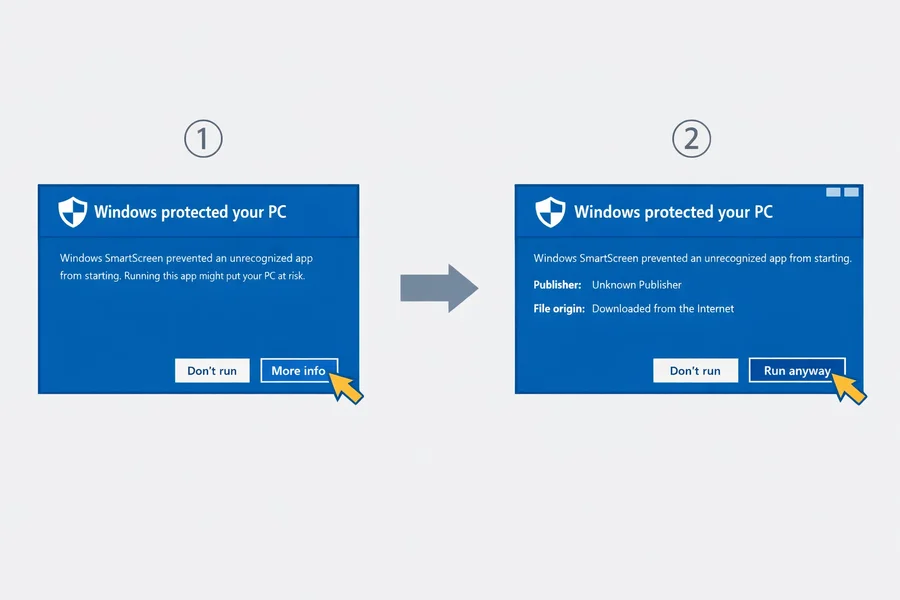
When you run the Weesper Neon Flow installer for the first time, Windows may display a blue warning screen with the message:
“Windows protected your PC”
Microsoft Defender SmartScreen prevented an unrecognized app from starting. Running this app might put your PC at risk.
This is the Windows SmartScreen filter — a built-in security feature that flags applications it hasn’t seen before. It is not a virus warning or a malware alert.
Why This Warning Appears
Windows SmartScreen works on a reputation system. It tracks how many users have downloaded and installed a particular application:
- Well-known apps (millions of downloads) → No warning
- Newer apps (building reputation) → Blue warning → This is where Weesper Neon Flow is now
- Known threats (flagged malware) → Red warning and block
Even though Weesper Neon Flow is digitally signed with a verified code signing certificate, SmartScreen requires additional download volume before it fully trusts any new application. This is standard for all independent software publishers — it is not specific to Weesper Neon Flow.
How to Proceed — Step by Step
Step 1: Click “More info”
On the blue SmartScreen warning screen, look for the “More info” text link below the warning message. Click it.
You will see additional details appear, including the app name (“Weesper-Neon-Flow-Windows-x64.msi”) and the publisher information.
Step 2: Click “Run anyway”
After clicking “More info”, a “Run anyway” button appears at the bottom of the dialog. Click it to proceed.
The installer will start normally from this point.
Step 3: Complete the installation
Follow the setup wizard as described in our installation guide. The rest of the process is standard.
Alternative Method: Unblock via File Properties
If you prefer, you can unblock the installer before running it:
- Right-click the downloaded installer file in File Explorer
- Select Properties
- On the General tab, look for the “Security” section at the bottom
- Check the “Unblock” checkbox
- Click Apply, then OK
- Now double-click the installer — SmartScreen will not appear
Is Weesper Neon Flow Safe?
Absolutely. Here is why you can trust the installer:
- Digitally signed — The installer is signed with a verified code signing certificate. You can verify this by right-clicking the file → Properties → Digital Signatures
- Hosted on GitHub — The installer is distributed through GitHub Releases, a trusted platform used by millions of developers
- No data collection — Weesper Neon Flow processes your voice locally on your device. No audio data is sent to external servers for dictation
- Used by professionals — Doctors, lawyers, journalists, and business professionals rely on Weesper Neon Flow daily
This Warning Is Temporary
As more users download and install Weesper Neon Flow, the SmartScreen reputation score will increase automatically. Eventually, the warning will no longer appear for new installations. This is a normal phase for any newly published Windows application.
Need More Help?
If you encounter a different warning or error during installation, contact our support team.
Related Guides
- How to Install Weesper Neon Flow — Complete installation guide for macOS and Windows
- System Requirements — Check hardware and OS compatibility
- Microphone Not Working — Troubleshoot microphone issues after installation