

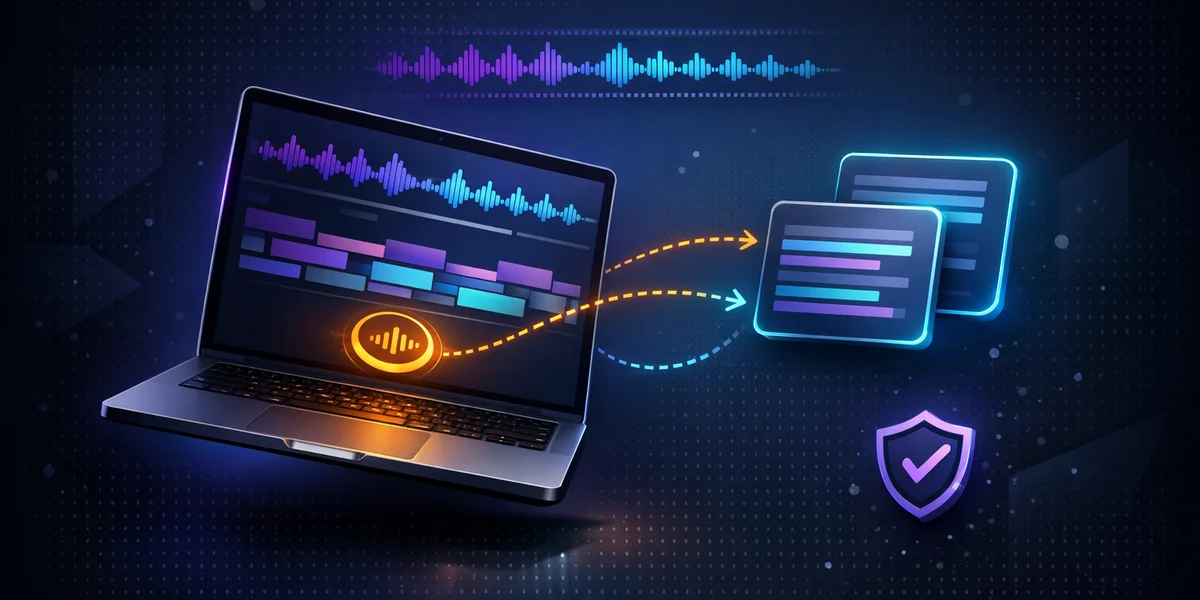
Direct answer — How do you create SRT and VTT subtitles from a video on a Mac without uploading it?
You can create SRT and VTT subtitles from a video offline on your Mac by transcribing the file locally, editing the text against its timestamps, then exporting time-coded subtitle files. Weesper Transcribe does exactly this on-device: drag in an MP4 or MOV, review the transcript, export .srt or .vtt. Nothing is uploaded, and macOS 13 or later is the only requirement.
Subtitles are no longer optional. Captions are a WCAG Level A requirement for pre-recorded video with audio, they keep viewers watching on silent autoplay feeds, and they give search engines something to index. The problem is that most subtitle generators ask you to upload your footage to a server first — which is awkward when the video is an embargoed product launch, a client interview or a recording covered by data protection rules.
This guide covers the offline route on macOS: what SRT and VTT actually are, how to produce them from a video file without a round-trip to the cloud, which format to pick for which destination, and how to check the result before you publish.
What are SRT and VTT subtitle files?
Both are plain-text files that pair blocks of text with start and end timecodes. Your player, editor or platform reads the timings and puts the right line on screen at the right moment.
SubRip (.srt) is the oldest and most widely accepted format. Each cue has a sequence number, a timing line using comma milliseconds, and one or two lines of text.
1
00:00:01,500 --> 00:00:04,200
We recorded this interview in a single take.
WebVTT (.vtt) is the W3C format designed for the web. Per the W3C specification, a valid file must begin with the string WEBVTT, and its timings use a full stop before milliseconds.
WEBVTT

00:00:01.500 --> 00:00:04.200
We recorded this interview in a single take.
The practical difference is capability. WebVTT supports styling, cue positioning, regions and inline markup tags such as <b>, <i> and <v> for speaker voices, which is why MDN documents it as the format used with the HTML <track> element.
SRT vs VTT at a glance
| Criterion | SRT (SubRip) | VTT (WebVTT) |
|---|---|---|
| Header line | None | WEBVTT required |
| Millisecond separator | Comma (,) | Full stop (.) |
| Cue numbering | Sequential, expected | Optional identifiers |
| Styling and positioning | Not supported | Supported (CSS ::cue, cue settings) |
| Inline markup | None | <b>, <i>, <u>, <v>, <lang> |
Native HTML5 <track> | Not supported | Supported |
| Editor and platform support | Near-universal | Web-first, widely supported |
| Best for | Video editors, social uploads, archives | Self-hosted web video, HTML players |
Neither format is “better”. They target different destinations, which is why a transcription tool worth using exports both.
Why generate subtitles offline instead of uploading to a cloud service?
Because the file itself is the sensitive asset. A cloud subtitle generator needs a full copy of your video before it can return a single caption line.
For a lot of footage that is simply not acceptable:
- Unreleased content — trailers, product launches and course material under embargo
- Client and legal recordings — interviews, depositions, consultations
- Personal data — any recording where participants are identifiable, which brings data protection obligations into play
- Internal meetings — commercially sensitive discussion that should not sit in a third-party retention window
On-device transcription removes the question entirely: there is no upload, no retention policy to audit and no account to create. It also removes the per-minute meter, which matters once you are subtitling hours of back catalogue rather than a single clip. We have broken down the trade-offs in detail in our comparison of how on-device and cloud transcription stack up.
The trade-off is hardware. Local transcription uses your Mac’s CPU and GPU, so a long file occupies your machine for a while — Weesper Transcribe uses Metal acceleration on Apple Silicon to keep that manageable, and runs on both Apple Silicon and Intel Macs from macOS 13 upwards.
How do you create SRT subtitles from a video on a Mac, step by step?
The workflow is four steps: add the file, let it transcribe locally, edit the text, export the subtitle format your destination expects. Here it is with the on-device transcription app for macOS.
- Drop the video in. Drag your MP4, MOV or any other file macOS can read into the app window. There is no need to extract an audio track first.
- Let it transcribe on your Mac. The speech recognition model runs locally. Nothing is uploaded, no account is required, and the transcript lands in a private, searchable history.
- Read through with clickable timestamps. Every segment is linked to its moment in the source media, so you click a line, hear the audio and fix what you heard. Corrections save as you type.
- Export
.srtor.vtt. Choose the subtitle format for your destination. Both come out time-coded and ready to drop into an editor or a web player.
Subtitling a whole back catalogue
For more than a handful of files, do it in batch. Queue a folder of episodes or lecture recordings and let your Mac process them in sequence while you work on something else.
The free tier transcribes files up to 15 minutes at full quality, which is enough to test the workflow on a real clip. The one-time Pro upgrade removes the length limit and unlocks batch processing, the full export set, inline editing and search — a single purchase on the App Store rather than a subscription.
Turning the same transcript into other deliverables
The subtitle file is rarely the only thing you need from a recording. Weesper Transcribe exports nine formats from a single transcription:
| Deliverable | Export format |
|---|---|
| Subtitles for an editor or platform | SRT, VTT |
| Show notes or a blog draft | Markdown, HTML |
| Client-ready document | DOCX, PDF |
| Quick copy-paste | TXT |
| Data pipeline or spreadsheet | JSON, CSV |
That is the actual time saving: one pass over the audio produces the captions, the show notes and the archive entry at once — see how the same workflow can turn a podcast episode into show notes on Mac. Whichever deliverable you export today, the transcript stays in the local history — and semantic search finds it later by what was said, not just the words used.
Which subtitle format should you export for each platform?
Match the format to the destination, and when in doubt export SRT. YouTube’s own documentation lists both SubRip and WebVTT among its supported caption formats, and recommends SRT for people who only need basic timing information.
| Destination | Export | Why |
|---|---|---|
| YouTube, Vimeo | SRT | Accepted directly, simplest to re-edit |
| Final Cut Pro, Premiere Pro, DaVinci Resolve | SRT | Standard import for a subtitle track |
| Self-hosted HTML5 video | VTT | Required by the <track> element |
| LinkedIn, social uploads | SRT | Widest platform acceptance |
| Burned-in captions | SRT then style in the editor | Styling belongs to the edit, not the file |
| Web player with custom caption styling | VTT | Supports positioning and CSS ::cue |
Because both formats are plain text, converting between them later is trivial. Exporting the right one now just saves a step.
How do you check subtitles before publishing?
Treat the automatic output as a first draft. The W3C Web Accessibility Initiative is unambiguous that automatically generated captions do not meet accessibility requirements unless they are confirmed to be fully accurate — and it notes that captions are a WCAG Level A requirement for pre-recorded video with audio.
Work through this before you export the final file:
- Names and jargon. Proper nouns, product names and technical terms are where speech recognition drifts most. Search the transcript for each one and fix it globally.
- Numbers and units. Prices, dates and measurements need to be read, not guessed.
- Speaker changes. Mark them clearly. VTT can do it with the
<v>voice tag; SRT usually uses a leading dash. - Line length and timing. Keep cues to a couple of short lines so viewers can actually finish reading before the cue changes.
- Non-speech audio. Captions should carry meaningful sound, not only dialogue.
- The first thirty seconds. This is the segment most viewers see, and the one most often left unchecked.
Clickable timestamps make this pass quick, because you are verifying against the audio rather than re-watching the whole video. If you get stuck on the app itself, the support documentation covers export settings and file handling.
What about the alternatives?
On-device subtitling on macOS is a healthy category, and the honest answer is that several tools do the transcription part well. The differences show up in workflow: subscription or one-time purchase, how long files are handled, whether there is a searchable history, and how many export formats you get out of a single pass.
If you are weighing up the main dedicated apps, we compared MacWhisper and Superwhisper side by side. And if you would rather assemble the pipeline yourself from open-source parts, our guide to running whisper.cpp locally walks through the command-line route — more control, considerably more setup, and you build the SRT and VTT export step yourself. For a lighter mobile-to-Mac contender in the same file-transcription space, our Whisper Notes vs MacWhisper comparison puts three on-device transcription apps side by side, and our Aiko review covers another on-device Whisper option worth weighing. And if you are also weighing an all-in-one app that captures meetings and handles live dictation, our TranscribeNext vs Weesper Transcribe comparison covers that broader, subscription-priced alternative directly. If you are tracking what happened to Inscribe after its rebrand, our Inscribe (now Lyonesse) vs Weesper Transcribe comparison checks its macOS 26 requirement and 2026 pricing against Weesper Transcribe directly.
The one-time-versus-subscription question comes up across the whole category, not just SRT and VTT tools — we ran the full two-year cost comparison in our guide to subscription vs one-time-purchase transcription apps.
Frequently asked questions
What is the difference between an SRT and a VTT subtitle file?
Both are plain-text, time-coded caption files, but they differ in syntax and capability. SRT uses numbered cues and comma milliseconds (00:00:01,500), and is accepted almost everywhere. WebVTT starts with a mandatory WEBVTT header, uses full stop milliseconds (00:00:01.500) and supports styling, positioning and inline markup. Use SRT for maximum compatibility and VTT when serving captions with the HTML <track> element.
Can I generate subtitles from a video without uploading it to a server?
Yes. On-device apps run the speech recognition model locally, so the media file never leaves your Mac. You drag in an MP4, MOV, MP3 or any other file macOS can read, the transcript is produced on your machine, and you export SRT or VTT locally. This is what makes the workflow viable for embargoed footage, client interviews and recordings containing personal data.
Do I need to convert my video to audio first?
No. Video files including MP4 and MOV are accepted directly, alongside audio formats such as MP3, WAV and M4A. There is no need to extract an audio track with a separate tool. If your editing suite already exports an audio-only reference, that works too — the timings are identical as long as the file starts at the same point as the video.
How accurate are automatically generated subtitles?
Automatic transcription is a strong first draft, not a finished caption file. Accuracy depends on audio quality, accents, overlapping speakers and background noise. Accessibility guidance is explicit that automatic captions do not satisfy requirements unless confirmed accurate, so plan an editing pass on names, technical terms and punctuation before publishing.
Can I subtitle a folder of videos at once?
Yes, with batch processing: queue a folder and your Mac works through the files in sequence. The free tier of Weesper Transcribe handles files up to 15 minutes at full quality, and the one-time Pro upgrade removes the length limit and unlocks batch processing, the full export set, inline editing and search.
Which languages can I create subtitles in?
Weesper Transcribe supports 57 transcription languages and transcribes in the language spoken in the recording rather than translating it. For a second language, export the source-language file first, then translate the text while leaving the timing lines untouched — any translated version drops straight back into your editor.
Conclusion
Creating SRT and VTT subtitles on a Mac does not require an upload, an account or a per-minute meter. Transcribe the file on-device, edit against clickable timestamps, and export the format your destination expects — SRT for editors and platforms, VTT for the web.
The workflow scales too: batch a folder of episodes, and pull show notes, a client document and an archive entry out of the same transcription pass.
Ready to subtitle your first file? See how Weesper Transcribe handles audio and video on macOS, or get it straight from the Mac App Store — free to download, with a one-time Pro upgrade and no subscription.