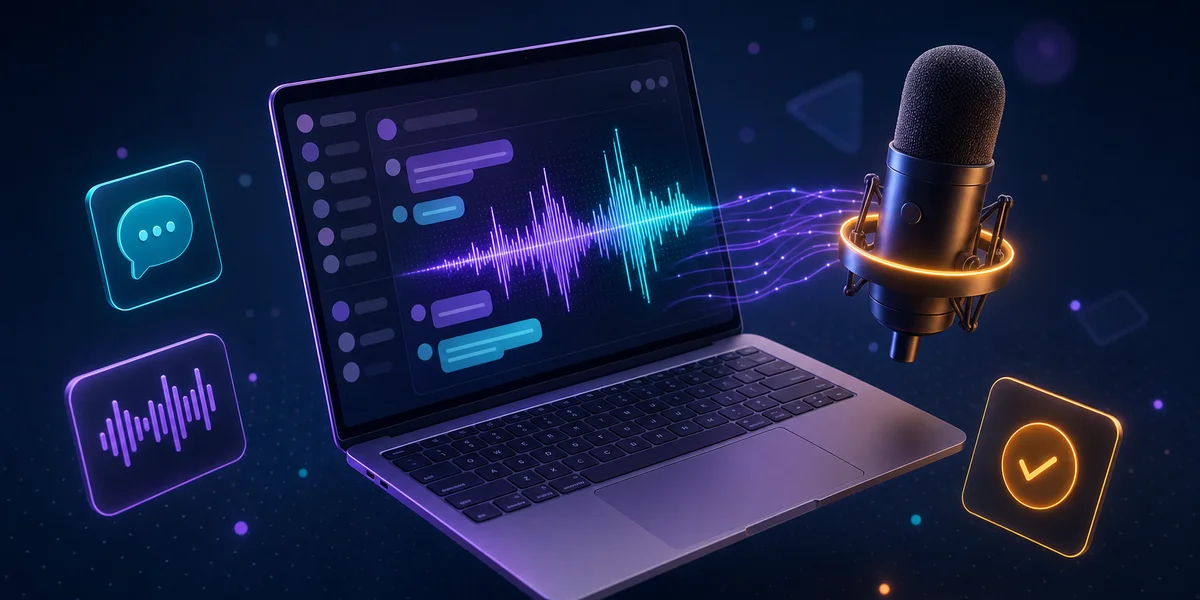
Voice dictation turns Slack and Microsoft Teams messages into a 150 WPM workflow instead of a 40 WPM one, but neither platform ships a native desktop composer for it in 2026. The fast path: use a system-wide tool that injects text into any focused input — Windows Voice Typing for short cloud-friendly bursts, or Weesper Neon Flow for offline, multilingual dictation across every Teams or Slack field on macOS and Windows.
Why dictate workplace messages instead of typing them?
Because chat is now where most of the workday happens, and typing is the bottleneck. Knowledge workers spend 38.9 hours per week communicating across email, chat, and meetings, with 60% of professionals using collaboration tools like Microsoft Teams and Slack daily. Grammarly’s annual survey, cited by Pumble, found that professionals lose roughly 13 hours per week to ineffective communication — the kind of terse, ambiguous Slack messages that trigger 30-minute “quick syncs” later.
Voice dictation is roughly 3-4x faster than typing (150 WPM speech vs ~40 WPM typing — see our voice dictation speed analysis for the source data). That speed differential changes how you write in chat: detailed context becomes cheap, status updates become fuller, and asynchronous handoffs replace impromptu meetings. The same productivity gain that powers async communication in distributed teams applies inside the chat window itself. The same speed advantage carries over once you step outside internal chat — see how it applies to dictating LinkedIn posts and outreach messages.
How do I set up voice dictation for Slack?
Slack does not include a native voice-to-text composer on desktop, so you need a system-level dictation tool. The path depends on your operating system and privacy requirements.
Quick setup checklist:
- Decide whether your messages are sensitive enough to require offline processing
- Install a system-wide dictation tool (Weesper Neon Flow, Windows Voice Typing, or macOS Dictation)
- Open Slack, click into any message composer or thread reply
- Trigger dictation with the tool’s hotkey (e.g. F19 for Weesper, Win+H for Windows)
- Speak the message; the text appears in the Slack input field
- Review punctuation and press Enter to send
On iOS and Android, the Slack mobile app accepts dictation from the system keyboard microphone — tap the message field, then the microphone key. Slack also supports recorded audio and video clips with optional transcript generation on every plan, but clips are a different use case: they create a playback file, not a typed message.
For longer channel posts, dictate the body in a draft, scan the transcript for accuracy, then post. Slack’s own search indexes typed text far better than it indexes clip transcripts, so dictation-to-text remains the more discoverable workflow.
How do I set up voice dictation for Microsoft Teams?
Microsoft Teams currently has no native dictation feature for the chat composer on desktop, despite repeated user requests on the Microsoft feedback portal. There are three workable approaches.
Option 1 — Windows Voice Typing (Win+H): Click into the Teams message field, press Windows logo key + H, and a microphone toolbar appears. Speak; words appear in the composer. Voice Typing supports 50+ languages and uses Azure Speech services — meaning your audio is sent to Microsoft’s cloud. Free, decent for non-sensitive messages, Windows-only.
Option 2 — Mobile keyboard dictation: The Teams iOS and Android apps accept input from the device keyboard’s microphone. Practical for quick replies on the go; less practical for longer channel posts.
Option 3 — Offline dictation software (Weesper Neon Flow): A dedicated tool that runs locally on macOS or Windows, supports 50+ languages, and injects text into any focused field — including Teams chat, channel posts, meeting notes, and the search bar. No audio leaves your device, which matters for regulated industries and for any company that doesn’t want internal messages transcribed by a third-party cloud.
If you mix Teams with other apps (Outlook, OneNote, browser tabs), a system-wide tool removes the need to learn a different shortcut per application.
How do built-in dictation options compare with third-party tools?
The native options are free but limited; third-party tools trade money for either better accuracy, offline processing, or broader language support. Here is the 2026 landscape for workplace messaging.
| Tool | Platforms | Cost | Privacy | Languages | Slack/Teams chat |
|---|---|---|---|---|---|
| Windows Voice Typing | Windows 10/11 | Free | Cloud (Azure) | 50+ | Works via Win+H |
| macOS Dictation | macOS | Free | Hybrid (on-device on Apple Silicon) | 60+ | Works in any text field |
| Slack mobile keyboard | iOS/Android | Free | Depends on OS keyboard | OS-dependent | Mobile only |
| Wispr Flow | macOS, Windows, iOS | ~$15-20/mo | Cloud | English-first | System-wide |
| Dragon Professional | Windows | Not published (one-time) | On-device | English-focused | System-wide |
| Weesper Neon Flow | macOS, Windows | €5/mo | 100% offline | 50+ | System-wide |
The pattern: free tools require an internet connection and route audio to a third-party cloud. Paid cloud tools (Wispr Flow) add AI rewriting but inherit the same privacy trade-off. Offline tools (Weesper Neon Flow, Dragon) keep audio on the device. Dragon is a heavyweight legacy product mostly used in medical and legal dictation. For everyday chat dictation, Weesper Neon Flow is the offline option with a published price and the widest language set.
When does voice dictation actually save time in chat?
Voice dictation pays off on any message longer than two sentences, and especially on three workplace messaging patterns where typing is most painful.
1. Status updates and standups. A 200-word async standup posted in #team-engineering takes five minutes to type and 90 seconds to dictate. Multiply by daily updates across the team and the recovered time is measurable. Knowledge workers who replace short typed updates with detailed dictated ones report fewer follow-up “quick questions” because the original message already answered them.
2. Channel posts and long-form announcements. Product launches, retro write-ups, policy changes — anything that runs longer than a paragraph. Dictation lets you produce a 400-word channel post in the time it takes to type 100 words, and the longer message tends to anticipate objections that would otherwise generate thread noise.
3. Code review and technical feedback. Explaining why a function should be refactored takes longer to type than to speak. Engineers who dictate code review comments tend to write more thorough reviews because the speed cost is lower. The same applies to ticket descriptions, RFC comments, and design feedback — the same productivity logic that powers voice dictation in Notion and Obsidian.
Where dictation does not save time: emoji reactions, one-word replies (“ack”, “ty”, “+1”), and messages where you would type fewer than 10 words. Keep typing for those.
What about privacy when dictating sensitive workplace messages?
Most workplace messaging contains information you would never email to an unknown vendor — client names, salary discussions, security incidents, customer complaints. When you dictate those messages, the audio is content too.
Cloud-based dictation tools transmit your spoken audio to provider servers for transcription. Windows Voice Typing, Google’s mobile keyboard dictation, and SaaS tools such as Wispr Flow all process audio off-device. Their terms of service typically allow audio to be retained for model improvement unless the user opts out. For regulated industries (healthcare, finance, legal), this is often non-compliant by default.
Offline tools process audio locally. Weesper Neon Flow uses on-device Whisper models — your microphone audio is converted to text on the same machine that runs Slack or Teams, with no network call. The transcript appears in the chat field; the audio is discarded. This matches the privacy posture most security teams expect from internal collaboration tools.
If your IT team has flagged “cloud transcription” as a data-leakage risk in your SOC 2 or ISO 27001 review, offline dictation is usually the cleanest answer.
How do international teams handle multilingual chat?
Multilingual workplaces are the strongest case for offline dictation. A team with engineers in São Paulo, designers in Berlin, and support reps in Madrid posts in three or four languages every day. The constraint is rarely accuracy — modern models handle the major languages well — but cost and privacy when every team member needs the same tool.
Weesper Neon Flow supports 50+ languages at €5 per month per user, with the model running locally. That means a Brazilian Portuguese-speaking developer can dictate a thread reply in pt-BR while a French marketing lead dictates a channel announcement in French, all from the same installation. Cloud tools that charge a higher per-seat fee make multilingual rollouts substantially more expensive across a 50-person team.
For setup guidance on multi-OS environments, the Weesper Help Center covers per-language microphone tuning and hotkey customisation.
Try Weesper Neon Flow for Slack and Teams dictation
If your team posts more than 10 chat messages per day and a non-trivial share of them are longer than two sentences, voice dictation pays for itself in under a week.
Download Weesper Neon Flow for a free 15-day trial on macOS or Windows. The installer is around 200 MB, no account required, and dictation works in Slack, Teams, Outlook, browser fields, and any other app on day one. For setup help, multilingual configuration, or hotkey troubleshooting, the Help Center has step-by-step guides for both platforms.
For broader context on how dictation reshapes communication patterns beyond chat, see our productivity speed analysis and the async communication playbook for distributed teams.