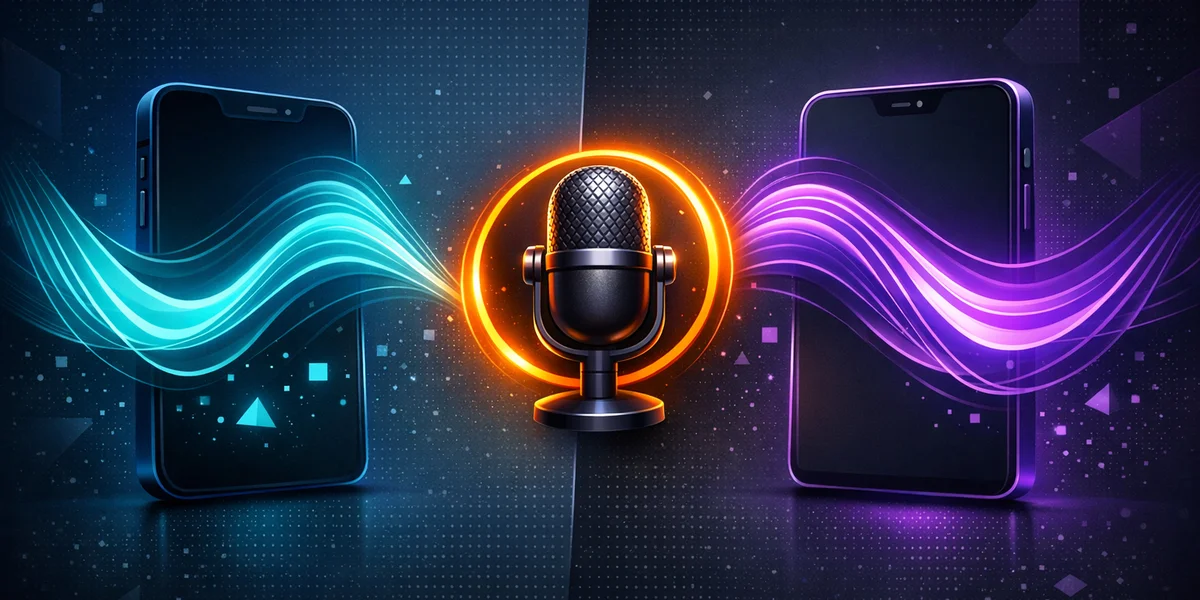
Voice dictation — converting spoken words into text using on-device or cloud speech recognition — has become a daily habit on phones. In 2026, the best voice dictation app for iPhone is Apple Dictation for free everyday use and Wispr Flow iOS for AI-polished writing. On Android, Gboard voice typing remains the default winner, with Otter and Speechnotes leading for longer recordings. None of the leading mobile apps replace a proper desktop dictation tool for sustained professional work.
Why mobile voice dictation matters in 2026
Pew Research Center puts smartphone ownership at 91 percent of US adults, rising to 97 percent among adults under 50 — your phone is now the most-used keyboard you own. On-device speech recognition means many mobile dictation apps now work without sending your audio to the cloud.
This guide compares the best speech to text phone options for iPhone and Android in 2026, with an honest take on where mobile shines, where it falls short, and how to combine it with a serious desktop tool when you write longer pieces.
What is the best voice dictation app for iPhone in 2026?
Apple Dictation is the best free voice dictation app for iPhone in 2026, and Wispr Flow iOS is the strongest premium alternative. Both run on modern iPhones, both handle 30 or more languages, and both feel native inside iOS apps.
The iOS dictation landscape now splits into three tiers:
- Built-in: Apple Dictation runs on-device on iPhone 12 and later, integrates with every text field, and is free. Best for everyday messaging, notes, and search.
- AI-polished writing: Wispr Flow iOS, Speakwise, and VoiceDash add AI commands, summaries, and tone correction on top of raw transcription. Best for emails and longer prose on the go. Monologue belongs here too, and is the only one that also runs on Apple Watch — our Monologue review covers its $15/month plan and its cloud-by-default processing.
- Specialised: Whisper Notes for offline transcription, Notta for multilingual meetings, Dragon Anywhere for legacy professional workflows, and the new Google AI Edge Eloquent app for free Gemma-based offline dictation on iPhone.
| App | Free tier | Offline | Languages | Best for |
|---|---|---|---|---|
| Apple Dictation | Yes | Yes (iPhone 12+) | 30+ | Everyday typing |
| Wispr Flow iOS | Limited | No | 100+ | AI-polished writing |
| Otter Mobile | Yes (limited) | No | 3 | Meetings, transcripts |
| Speechnotes | Yes | Partial | 60+ | Note-taking |
| Whisper Notes | No | Yes | 90+ | Private offline notes |
For longer professional dictation, none of these mobile apps fully replace a desktop tool. We will come back to that.
What is the best voice dictation app for Android in 2026?
Gboard with voice typing is the best default choice on Android, and Otter is the best heavy-duty alternative. Gboard is free, pre-installed on most devices, supports offline voice typing for downloaded languages, and works in every text field on the system.
Android users have a slightly different mix:
- Default: Gboard voice typing handles 95 percent of mobile typing scenarios. According to Google’s official Gboard documentation, it supports verbal punctuation, word replacement by voice, and language switching mid-sentence — making any Gboard dictation alternative a hard sell for casual users.
- Hands-free control: Android accessibility tools like Voice Access process speech mostly on-device and let users with mobility limitations control the entire phone by voice.
- Long-form recordings: Otter for Android, Notta, and Voicy mobile target meetings, lectures, and interviews where transcripts need to be searched later.
Gboard is hard to beat for free everyday use. The friction starts when you want long, polished documents.
Where mobile dictation falls short
Mobile dictation breaks down for sustained professional work. Three structural limits make this consistent across iPhone and Android.
1. Battery and thermal limits. Sustained on-device speech recognition heats the phone and drains the battery quickly. A 90-minute drafting session on a laptop is comfortable; the same on a phone is not.
2. Editing friction. Selecting text, moving cursors, applying formatting, and switching between apps is far slower with a phone keyboard, even with voice commands. Long-form editing is where touchscreens lose to keyboards and large screens.
3. Integration depth. Desktop dictation tools sit between every app on your machine and inject text into emails, IDEs, terminals, design tools, and CRMs. Mobile apps mostly stop at the system text field. For coding, legal drafting, medical notes, or long emails, that is a hard ceiling.
This is why most professionals end up with a hybrid setup: the phone for capture and casual messaging, a proper desktop dictation tool for the work that matters.
Mobile capture, desktop production: the realistic split
The most productive 2026 workflow combines a mobile dictation app with a desktop one. You capture ideas, voice notes, and short messages on your phone, then continue serious dictation on your laptop where the keyboard, the screen, and the integrations are far better.
Concrete example: a management consultant leaves a client meeting with 20 minutes of insights on her iPhone. She uses Apple Dictation as her dictation app iOS default to capture bullet points into Apple Notes during the taxi ride. Back at the desk an hour later, she opens her Mac, pulls those notes into a draft, and uses a desktop dictation tool with custom prompts to expand them into a full 12-page report — the same hybrid pattern works for journalists, lawyers, doctors, and developers.
A practical split looks like this:
- On the move: Apple Dictation on iPhone or Gboard on Android for messages, notes, and quick captures.
- At your desk: A dedicated desktop dictation tool for emails, documents, code, and reports.
- Sync layer: iCloud Notes, Google Keep, Obsidian, or Notion to bring mobile captures back to the desktop.
For the desktop side, Weesper Neon Flow is built for exactly this kind of professional workflow on macOS and Windows. It is fully offline, processes audio on-device, and integrates everywhere you can type on your computer. On mobile, we honestly recommend whatever native option fits you best — Apple Dictation, Gboard, Wispr Flow, or Otter — and we focus on owning the desktop side of the experience.
To be clear: Weesper Neon Flow does not have an iPhone or Android app. We currently run only on macOS and Windows, and we recommend the apps above for mobile capture.
How to choose between mobile dictation apps
Match the app to the dominant use case rather than the platform. The right question is “what do I dictate most?” — not “iOS or Android?”.
- Messaging and short notes: Apple Dictation (iOS), Gboard (Android). Free, fast, deeply integrated.
- AI-polished writing on the go: Wispr Flow iOS, Speakwise. Worth paying for if you draft long emails or social posts on your phone.
- Meetings and lectures: Otter, Notta. Built around transcripts you can search and share.
- Privacy-sensitive notes: Whisper Notes (iOS), Apple Dictation in on-device mode, or any offline-first desktop dictation tool for the longer pieces.
- Accessibility and hands-free control: Voice Control on iOS, Voice Access on Android.
If you only pick one mobile app, default to Apple Dictation on iPhone and Gboard on Android — both are free, both improve every year, and both are deeply integrated with the rest of the operating system.
Quick mobile vs desktop comparison
| Dimension | Mobile dictation (Apple, Gboard, etc.) | Desktop dictation (Weesper, Wispr desktop, Dragon) |
|---|---|---|
| Best for | Short messages, capture on the go | Long documents, emails, code, reports |
| Offline | Partial (newer iPhones, Gboard) | Yes for offline-first tools |
| Custom prompts | Limited | Available on Weesper and a few others |
| Integration depth | System text fields only | Every app on the machine |
| Battery / thermal | Phone-limited | Powered by laptop / desktop |
| Price | Free to a few dollars/month | Around 5 EUR/month for Weesper, 10 to 30 USD/month for others |
Conclusion
For mobile dictation in 2026, the verdict is simple: use Apple Dictation on iPhone and Gboard on Android as your default, add Wispr Flow iOS or Otter only if you have a clear reason, and pair them with a desktop dictation tool when you do longer professional work.
Weesper Neon Flow is built for that desktop side: offline, multilingual, with custom prompts, at 5 EUR per month on macOS and Windows. On mobile, use whatever native option fits your workflow.
Ready to upgrade your desktop dictation? Try Weesper Neon Flow free for 15 days, or explore our step-by-step setup guide to see how a hybrid mobile-and-desktop workflow looks in practice.